Hard Drive Failure

So you had something like a hard copy of everything?

And yeah portability might cost a little bit more. Desktops may or may not depending on what's already there, such as a monitor or keyboard. Some systems come only with the box or a box and keyboard given that monitors are pretty common. But being able to move around a computer is actually quite nice. For decades I'd see laptops being taken into meetings where presenters would take turns plugging them into the main monitor/projector.

But most users barely tap into the computing power of any of their computers - especially for business purposes.

I mostly used the bank statements.
 
They were unable to retrieve any data from the failed hard drive. They replaced the hard drive with a solid state hard drive. I was actually NOT planning on replacing the hard drive and just using my personal laptop. It has been so nice sitting on the couch and working vs at a desk.

Question now for those tech savvy individuals. Is it possible to connect the desktop computer tower to my laptop to use it as a back up for my laptop?
 
Yes, you could potentially use the desktop as a backup driver, with the appropriate configuration and connection to your home network.

Honestly, you will have an easier time using something like this, which comes with the software and instructions to support a home-based backup
https://a.co/d/6Aj3iqO

If you trust Intuit (I have no particular reason you shouldn’t), you might consider their backup service for Quickbooks. You can also choose to use GoogleDrive, OneDrive, Norton Backup, or another Cloud-based option, if you have an appropriate license. Different technologies come with different services. One thing to be cautious about is whether the backup tech you use will close any open file before copying it or whether open files aren‘t backed up. If the latter, you would want to ensure all applications with documents you care about are closed when the backup system runs.
 
Last edited:
They were unable to retrieve any data from the failed hard drive. They replaced the hard drive with a solid state hard drive. I was actually NOT planning on replacing the hard drive and just using my personal laptop. It has been so nice sitting on the couch and working vs at a desk.
Depending on the company, that doesn't surprise me. Companies can be particular on what electronics they allow to access their data.
Question now for those tech savvy individuals. Is it possible to connect the desktop computer tower to my laptop to use it as a back up for my laptop?
I think it's possible, but might violate company policy.

You might do better working with the company to arrange for some kind of cloud backup. Whether Google Drive, Microsoft One Drive, Dropbox, or something else, I suggest contacting your IT department/boss, explain your concerns and see what they suggest.
 

Depending on the company, that doesn't surprise me. Companies can be particular on what electronics they allow to access their data.

I think it's possible, but might violate company policy.

You might do better working with the company to arrange for some kind of cloud backup. Whether Google Drive, Microsoft One Drive, Dropbox, or something else, I suggest contacting your IT department/boss, explain your concerns and see what they suggest.

I have free range to do whatever I want. There is no IT department or anyone else for that matter. It is only me.
 
I would still suggest an online backup. What happens if/when you leave the company?

I don’t see the concern. If I leave all company files will be on the company owned desktop for them to do with whatever they want. I was just wondering if what I am proposing is possible. I am already looking at online/cloud backup. I did find a data transfer cable that will allow me to connect the lap top and the desktop. The desktop will store all company files. My laptop will store those that I routinely use.
 
I don’t see the concern. If I leave all company files will be on the company owned desktop for them to do with whatever they want. I was just wondering if what I am proposing is possible. I am already looking at online/cloud backup. I did find a data transfer cable that will allow me to connect the lap top and the desktop. The desktop will store all company files. My laptop will store those that I routinely use.

Anything is possible, but that sounds rather impractical. Not sure there’s any ready made solution for what you’re asking.

A simple external drive with software to perform automatic and/or scheduled backup would probably be your easiest option. Others mentioned possibly backing up to cloud services (i.e. via internet). I don’t know exactly what software is available, but I’m sure there are several.
 
If your desktop has room for another hard drive, get one installed and move the original drive to the secondary or D drive. In many cases you will be able to see the data on it after booting from the new drive.
 
I don’t see the concern. If I leave all company files will be on the company owned desktop for them to do with whatever they want. I was just wondering if what I am proposing is possible. I am already looking at online/cloud backup. I did find a data transfer cable that will allow me to connect the lap top and the desktop. The desktop will store all company files. My laptop will store those that I routinely use.
The concern is just what your company's policy is regarding IT and using "personal" equipment. It doesn't sound like the case for you, so that's fine.

You can set up a hard drive on "Computer A" to be "shareable" across your local network.
 
Anything is possible, but that sounds rather impractical. Not sure there’s any ready made solution for what you’re asking.
And that is why I was asking.

As a layperson I’m not sure I understand the difference between an external hard drive and using the desktop for this purpose. Why can’t the desktop be an external hard drive?
 
And that is why I was asking.

As a layperson I’m not sure I understand the difference between an external hard drive and using the desktop for this purpose. Why can’t the desktop be an external hard drive?

It's rather complicated and I'm certainly no networking or IT expert. But I do have several complete backups of my various computers. The easiest thing to do is to have a single plug in device that does periodic backups. That's what an external drive is. But it doesn't have to be a hard drive or an "SSD". Theoretically a large capacity USB flash drive could be used, although long-term reliability could be an issue.

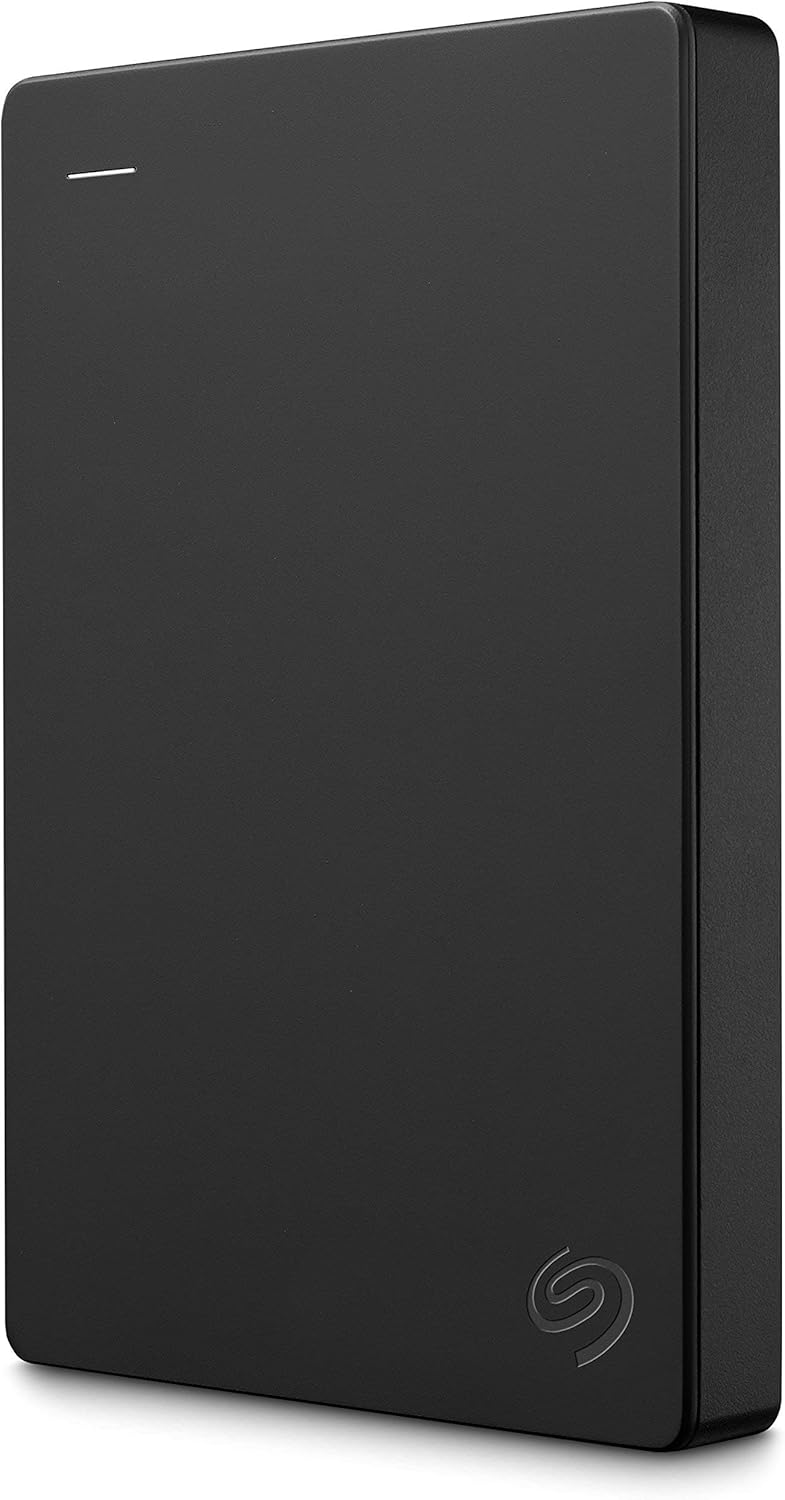
This is an external hard drive. I've got the 4 TB version in this series, but the price has gone up. I'd think for the average user, this one (2 TB) would be adequate as a backup and is at an excellent price point. It's a pretty basic drive and doesn't have a whole lot of bells and whistles, but it does everything that I need for a backup and for offloading data that I don't want on my boot drive. It's pretty simple. It has a cable to connect from USB to the drive, and uses very little power - which will come straight from the computer. If you've used a USB flash drive, it's not really all that different other than it's bigger and makes noise. It should show up as a device that the user can access just like the main drive.

https://www.amazon.com/Seagate-Portable-External-Hard-Drive/dp/B07CRG94G3?th=1
81tjLksKixL._AC_SL1500_.jpg

I'm not sure what you would want to use for backup software. I've got mine formatted for use on a Mac and there's really good built-in backup software (Time Machine) native-built in the operating system. I've got it set up so that whenever my drive is connected, it will periodically perform incremental backups. When it's connected for a while, I find that the backups are performed about every hour of so, and I can access these as "snapshots"
Seagate has some sort of backup software for Windows available for free, although I've never used it. There are other pieces of commercial software available. But for your application, I'd think something simple might be best. Maybe contact whoever tried to recover the data previously and ask what they recommend.

You asked about the difference between a "portable" drive was. It's kind of a nebulous distinction. The really big difference is bus-powered and external powered. These smaller drives use less power and as I noted will be powered directly by the computer. Larger external drives typically use 3.5" drives and will need to be powered off of a separate power supply (aka a "wall wart"). I've got a few of these, which require a connection to a computer in addition to a connection a 12V power supply with a barrel connector. I haven't looked this over completely, but it should give a good idea of what's involved.

 
As a layperson I’m not sure I understand the difference between an external hard drive and using the desktop for this purpose. Why can’t the desktop be an external hard drive?
You can. The things you need to be concerned about are connection and size of the drive (storage size, not physical size).

The easiest way to connect is over the network. On the desktop, you would set up for the drive you want to use to be "shared". Then you can link to it from any other device on the network. This may be able to done over USB, but I'm not familiar with that.

The other thing you need to look at is how much space is left on the drive. If you only have a 500GB drive, and you're using 450GB for the desktop (operating system, photo/video/file storage, apps, etc), it's not a good idea to put more on it.

You ideally want to leave ~20% free on any given drive.
 
Other considerations include how much work you want to do to ensure everything is backed up. You can manually copy files between computers. If you know what you are doing, you can develop a scheduled task to automatically copy a file or files. Or you can purchase software that will copy the files for you on a set schedule or set conditions through a series of menu-based choices. another advantage of this last option is, depending on the software purchased, it will produce an easily accessible report that the backup was successful or not successful, and why.

All backup solutions need both a source of data to back up and a destination. Configuring the destination and ensuring there is a good connection between the source and the destination are probably the hardest steps and can involve setting user permissions.

It is often a good idea to have a backup strategy. There are three main things you want to protect against 1) data loss due to system failure, 2) data loss due to user error, and 3) viruses. For two and 3, in particular, you may want multiple backups generated at
different times so that you can step back in time to different points, since you may not become aware of the threat as soon as it occurs.
 
My (work) desktop computer's hard drive failed. Went to do work on it on Saturday and got a can not detect hard drive error. This computer has EVRYTHING on it and unfortunately no backup (dumb move I know). What are the chances that the data will be able to be recovered? If you have had this happen were you able to recovery your data? Who did you take it to do this? How much did it cost you?
Wow sounds terrible. Sometimes things are in the cloud and you don’t even know it (or so I am told).
 
And why are we not using cloud storage for working files? Would be the smartest solution. And covers backups. NAS add-on would be second-best. Connecting multiple devices, transferring files, and external drives are poor workarounds. Even new drives can fail. OneDrive would solve a lot of problems here.
 
Don't need to. I have a home server running a RAID 5 array, plus a NAS device, and an offsite-stored external drive for my personal stuff. For work, OneDrive is a corporate standard.


Disney Vacation Planning. Free. Done for You.
Our Authorized Disney Vacation Planners are here to provide personalized, expert advice, answer every question, and uncover the best discounts. Let Dreams Unlimited Travel take care of all the details, so you can sit back, relax, and enjoy a stress-free vacation.
Start Your Disney Vacation
Disney EarMarked Producer


DIS Facebook DIS youtube DIS Instagram DIS Pinterest DIS Tiktok DIS Twitter

Back
Top Bottom