Photo-centric WDW trip -- questions!

I really like the way the Carousel of Progress building bulges toward the viewer, but I do wish I had been able to get a somewhat higher vantage point, so that the "Walt Disney's" on the sign were readable.

My real dream Walt Disney World trip would involve mostly empty parks* and a scissor-lift vehicle I can use at will to get higher vantage points when needed! :thumbsup2 That one seems exceedingly unlikely to ever happen, though. I'm not holding my breath.

*I usually go to great lengths to get shots free of guests as much as possible. There are exceptions, however -- if I am shooting Wishes with the castle in the foreground, for example, I think having silhouetted guests with their backs turned, watching the fireworks, really adds to the image. It would feel wrong to have such an image, showing Main Street and/or the hub without guests, with Wishes going on. The viewer would wonder why no one was watching.

I have a friend at work who likes my photos (and who has never been to WDW) but thinks I should always include the guests because they're part of the park atmosphere. I understand his logic, but I disagree. Any competent photographer could make images like that -- I want something different. I like giving the viewer the impression of having the parks to themselves, something few people ever get in reality.

Scott
 
I really like the Adventureland picture. The effects make it look almost like an illustration. It's right on the edge with your perception wondering if it's an illustration or a photograph.

Simply awesome!

Marlton Mom
 

Yes, the Adventureland photo came out very nicely. Pretty pleased with it.

I mentioned earlier in this thread that I decided to shoot JPEG in some situations so that I wouldn't fill up the buffer when shooting lots of image in a short time. I wish now I hadn't done it -- correcting the white balance in some of those cases has been a real bear.

Several more images will be up soon ... within a day or three, I think.

I'm already itching to go back.

Scott

 
Love, Love, Love GF Sunset #1.

Great job. Now you are making me want to take a solo trip...............DD4 would never let me though. :-)
 
Love, Love, Love GF Sunset #1.
Yeah -- you should have seen the sunset maybe ten minutes earlier. I was looking at it in a mixture of awe and dismay as I hustled in from the TTC parking area. Awe at how amazing it was, and dismay because I had a feeling I wasn't going to make it in time to photograph it as a backdrop to anything interesting. I had earlier had the idea that a sunset might make a good background for Splash Mountain or Big Thunder Mountain -- obviously, that wasn't going to happen that day. At least I did get some of it before it faded to black. But you should have seen it in full glory! The whole western sky was on fire, with perfect "God rays."

Even managed to get a bit of it in the Polynesian shot, which I think is otherwise just okay.

This was actually not only my first visit to Boardwalk, but also my first up-close look at the Dolphin. I was struck by how colorful it is, and what with that and the giant fish on the exterior, I came away thinking it looked sort of like a deluxe version of an All-Star Resort. I got some closer shots of the main entrance that will be coming later.

Unfortunately, that's the only image I got of the exterior of the Polynesian. On my last day, I went to the Poly and did some shooting in the lobby, with the idea that I would shoot some on the exterior afterward and walk from there to the Grand Floridian -- with some shots of the wedding pavilion on the way -- and then over the Magic Kingdom for a bit before I started home. The storm that arrived while I was in the lobby of the Polynesian put the kibosh on that plan. The closest I got to shooting the exterior of either resort was the Mary Poppins topiary outside 1900 Park Fare. Oh well.

Scott
 
The Dolphin one really stands out like the Adventureland one. It really draws the eye and engages the mind.

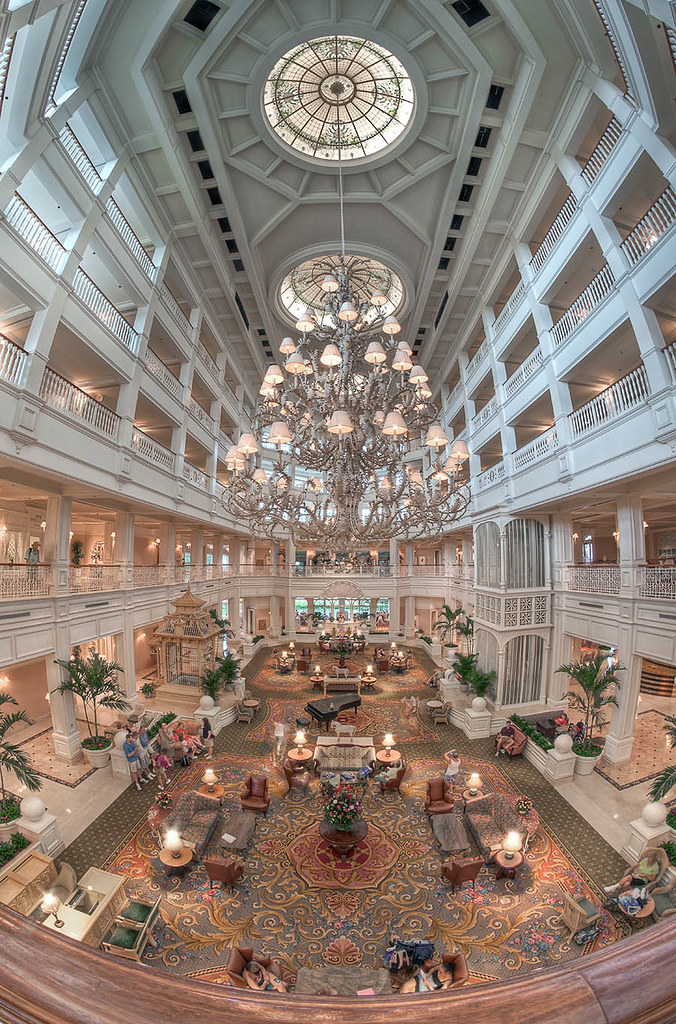
I also like the wide angle view of the GF and the Poly is nice too.
For the boardwalk I love the reflection in the water. I'm wondering what it would look like if you cropped out more of the sky but when I do that by scrolling the picture up on my screen I like the way you have it too. I guess you could do that one two ways

Good job and keep 'em coming!

Marlton Mom
 
So, here's a bit of a case-study, just for the heck of it and because I thought someone might be interested.

Here are three versions of an image I made from Japan in Epcot on this recent trip. I was particularly struck by the sand-garden (or whatever it's called) in the foreground and the way the light accented the texture there, so I wanted to make sure I included and accentuated that.

First, just for kicks, is the "base" exposure.


_DSC4771 for Flickr by Scott S. Baxter, on Flickr

This is what I saw when I opened the file in Camera Raw, before any corrections were applied. Before I did anything else, I applied lens distortion correction, a white balance tweak, a little noise reduction and sharpness, and vibrance enhancements to this and the other eight exposures I chose to use. Then, rather than going straight to Photomatix (which would have required that I first generate TIFFs or JPEGs so that all of those settings changes in ACR would amount to something), I chose to use Photoshop CS5's "Merge to HDR Pro." I used that to create a 32-bit EXR file; I just took the default settings and then opened the EXR in Photomatix to do the tone-mapping.

Anyway, here is the tone-mapped file that resulted once I was done with the image in Photomatix.


WDW Disney Epcot Japan 2 HDR basic tonemapped Flickr by Scott S. Baxter, on Flickr

I saved that as a 16-bit TIFF and opened it again in Camera Raw, where I subjected it to all manner of indignities. I added Clarity and Vibrance, a little sharpening and a touch of fill light. Then back to Photoshop ...

In Photoshop, I used a little Topaz Adjust -- I think I started with the "Crisp" setting and applied that to a copy of the background layer. I reduced the opacity of the result, then copied the "Topaz-ed" layer again and masked it out using a layer mask, except for the lower quarter of the image and a few other selected areas, where I allowed it to show at full strength.

I made a copy of the blue channel and used Curves to make that into an alpha-channel mask for the sky, which I used to apply a Hue and Saturation adjustment layer isolated for the sky. I wasn't particularly pleased with the purplish tone of the sky, so I shifted the hue toward the blue I had remembered seeing earlier in the evening, and bumped up the saturation a bit.

Except for a few dust spots on the sensor and a handful of hot pixels, I didn't have to do any cloning. I used content-aware fill to fix the dust spots and the Spot Healing Brush, also set to content-aware, to fix the hot pixels.

Next, I applied a three-pixel High Pass filter to a copy of the re-worked image on a new layer, desaturated the result, and set that layer to Overlay (in this case -- sometimes a different blend mode works better) to apply final sharpening. This is my time-tested favorite method for sharpening for various reasons, not least of which is versatility and relative lack of visible artifacts. I can vary the opacity, change the blend mode to one of several different possibilities, and even apply the Median filter to the High Pass layer at a low setting if image noise is showing itself too strongly for my liking. I didn't use the Median filter this time, though.

I tried applying the Lens Correction filter to the image. As I figured, this made the lamp posts straight but made the building look as if it was "coming at cha!" like an out-control cash-register drawer in a 3D movie. I decided to live with the distortion instead.

Finally, all of this fooling around generated this:


WDW Disney Epcot Japan 2 HDR for Flickr by Scott S. Baxter, on Flickr

Hope you like it. And what do you think -- do you like reading post-processing play-by-play like this once in a while?

Scott
 
So, here's a bit of a case-study, just for the heck of it and because I thought someone might be interested.

Snip.........I saved that as a 16-bit TIFF and opened it again in Camera Raw, where I subjected it to all manner of indignities.

Hope you like it. And what do you think -- do you like reading post-processing play-by-play like this once in a while?

Scott

LOL 'indignities'!!!!!

No, this is not too much information at all. I think you are doing something that most people don't realize can be a really fun way to further engage in the photographic arts.

I wish I had the command of all the post processing software that you have. I'm wondering where you acquired all this knowledge. If I may ask, did you take courses or did you just fool around and figure it out for yourself?

All I'm doing is post processing in Camera Raw (doing ok with that) and then fine tuning the Jpeg using just Image/adjustments in CS4. CS4 is a real enigma to me, especially since I was only able to take a 4 class mini course in it where the instructor rocketed through the info. I don't do any editing anyway so I'm pretty sure that's not making an impact on what I'd like to do.

I've been thinking about trying to use different post processing software other than Camera raw but I don't know enough about all the other software to make an informed choice. From previous threads I'm thinking Adobe Light Room is the way to go but I'm not sure how much more it offers over Camera Raw.

Do you have any suggestions?

Thanks,

Marlton Mom
 
I wish I had the command of all the post processing software that you have. I'm wondering where you acquired all this knowledge. If I may ask, did you take courses or did you just fool around and figure it out for yourself?
A little of both. Mostly from books and just playing with the software. It can be really helpful to learn what the various layer blending modes do and how they work, as much as you can. I think that when I did that, I began to move toward some understanding about how Photoshop works and how I might be able to use it to do what I want. Prior to that, I had been more focused on finding a reference to an effect I wanted to use and following what amounted to recipe for applying that effect. I could copy a layer and set it to a given mode in the process of following directions, but for a long time I had no idea why I was being told to set a layer to Overlay vs. Difference vs. Color Dodge. When you know what the blend modes do, you can start to imagine which one might push your image in the direction you want it to go. Then you really start to unlock some of the program's truly awesome power.

I've been using Photoshop since about 1994, and I started with version 2.5, if that tells you anything. The classes I've taken have mostly been limited to things such as Photoshop World seminars and the like. I have, however, read lots of Photoshop books over the years.

Lightroom and Adobe Camera Raw really share the same RAW processing engine. While there are lots of things to like and recommend about Lightroom, it doesn't offer a lot of advantages or disadvantages over ACR specifically in terms of processing RAW files.

I know other software exists that offers some advantages. Nikon's software, for example, can interpret some of the settings you make in camera that ACR cannot. However, it also has disadvantages as well, and I'm happy enough with what I have.
All I'm doing is post processing in Camera Raw (doing ok with that) and then fine tuning the Jpeg using just Image/adjustments in CS4.
Camera Raw is a great way to go and I use it for the bulk of my processing these days; I rely on Photoshop proper much less (or at least for far fewer steps) in my processing than I once did. ACR and Lightroom were were, I believe, designed for photographers with them in mind, whereas Photoshop began life as an application primarily intended to help graphic designers. That isn't to knock Photoshop, as it still rocks and nothing else on the market can match its incredible depth and power. But for many things, ACR offers a more intuitive and straightforward way to do what a photographer would generally want to do than Photoshop does. Both programs can sharpen an image easily enough, but don't go looking for a white balance slider in Photoshop. You can alter your white balance in Photoshop, certainly -- sometimes when ACR has hit a wall in that regard, Photoshop still has room to operate and more ways to do it. But in most cases, ACR can do it more intuitively and with less mucking around and guesswork than Photoshop requires.

Don't make the mistake of thinking I know everything about Photoshop, though, by any means. Good lord no! There are commands I don't use and have no idea how to use. For example, I have some small idea what "Calculations" does and some situations where it might be used, but no earthly idea of how to use it. As far as I know, I don't need to know that. I mean, lots of people use Microsoft Word to write letters and memos, and even though it has features designed to make it useful for writing long-form books, they never ever touch them.

I've never felt comfortable saying I'm an "expert" with Photoshop, even though I guess I probably am pretty close to one based on how well most people know it. But the more I've learned about it the more I glimpse how much power it has and how much I don't know. I have said for years that I think I know about 65 to 70 percent of what it can do. The funny thing is that the more I learn, the percentage doesn't go up because I also revise my estimate of its potential!

When I started using Photoshop, it didn't even have layers at all! When it did get them (in version 3.0), it took me a year or two to understand why I might need them. I'm sure the current version has features I don't yet realize I need. But that's okay -- I love to learn new things ... thank goodness!

Scott
 
Because I'm feeling loquacious this afternoon and in the mood to share some of my wisdom* (snort!), I'll illustrate some of what I was talking about in my previous post with a specific example, and also why I made one of the decisions I made in processing the Japan image and maybe why I might make a different decision for other images, for those who are interested. Some of you will already know this stuff, of course.

*Read more accurately as "in the mood to take the time to pound away at the keyboard for a while."

Both ACR/Lightroom and Photoshop have Saturation sliders and Vibrance sliders. Anyone who fiddles with the sliders in any of these programs can see that to some extent, they produce a similar effect. So what's he difference? Well, Saturation is a sledgehammer, specially the master Saturation slider. It increases the saturation of all colors in the image up to the point where they are as high as they can go or the slider hits the wall. A sledgehammer is a good tool to have, but it isn't always the best tool. Far greater control may be found in the Hue/Saturation/Lightness panel in ACR or the Hue and Saturation adjustment in Photoshop. There you can adjust individual ranges of colors mostly independent of the others. In that case, ACR wins because it has broken out more colors for you -- Photoshop cannot specifically target oranges, aquas and purples, but ACR can. Actually, Photoshop can be made to do so, but although the method is potentially more powerful, it is somewhat kludgy to use in practice (there is a spectrum at the bottom of the panel in Photoshop that can be used to narrow, tighten or just altogether change the range of colors to which the slider applies. Although you can make a limited amount of these same changes in ACR, you don't have the power to easily make giant wholesale changes to colors there that you can do in Photoshop. In other words, in ACR you can shift the hue of your oranges toward red or yellow, but you cannot us the same slider to make your oranges green. In Photoshop, you can do that. But ACR doesn't have that power because a photographer would rarely want to do that except for personal amusement, whereas a graphic artist working in Photoshop might well have such a need.

So what's the difference between Saturation and Vibrance, then? Well, as stated, Saturation (at least the master slider) does what it implies -- increases or reduces saturation across the board to all colors in the image. So if Saturation is a sledgehammer, Vibrance is a jeweler's hammer (man, is that ever an over-amplification of the difference!). Vibrance is different in two key ways. First, it increases the saturation of all colors, but it is specifically designed to have its greatest effect on the colors in an image that are least saturated while having little effect on those that are closer to being saturated already. In addition, it is designed to have a low effect on colors that are commonly found in skin tones. ACR had the Vibrance slider first, and it became a later addition to Photoshop. Of course, the nice thing about Photoshop is that it can easily incorporate a feature such as this.

Now, the choice I mentioned above -- I made an alpha channel to build a mask for the sky and did a localized adjustment to change the hue and saturation for just that on area. This is actually counter to how I usually work these days. In most cases I prefer to make global adjustments that affect the entire image. They're easier and, as a general rule, more natural-looking. However, in this cases the sky was pretty well isolated from everything else, and I was making a relatively small change to the hue. Had I wanted, for some bizarre reason, to make he sky bright red, I might have done that as a global adjustment because the color of the sky affects the color of the things under said sky. But in this case I thought a local adjustment was better. From experience, I knew that the purple sky would be lightest in the blue channel, and rather than attempting some crazy stunt of actually starting from scratch and trying to draw or paint a mask, it is usually far better to use the image to create its own mask. So made a copy of that blue channel, and as I suspected, it gave me the greatest contrast between the sky and most of the rest of the image. I looked for the point where the sky was darkest, opened Curves, and clicked in that darkest area of the sky to see where it ell on the curve. Then I just grabbed the curve at far right edge and dragged it along the top until it got to the point that darkest part of the sky was turned pure white. Then I grabbed the curve at the bottom left and dragged that end along the bottom until the curve was very steep and almost everything else in the image other than the sky was pure black. Then I used a paint brush and the lasso to select and fill in the small areas that should be white and weren't and vice versa -- that last took me 30 seconds at most. The best part was that I didn't have to fool around at all with the transitions/edges of the mask, where the sky meets the trees and the top of the building. All of that was already done for me by the image itself, and perfectly -- or darn close. And the truth is that it didn't have to be 100 percent perfect, since I then Command-clicked the mask I had made to make it active and used a Hue/Saturation adjustment layer to shift the hue of the purple sky toward blue and away from magenta, and then bumped up the saturation of same. Ta-daaa! And it was largely years of trial-and-error and general fooling around with the software that taught me that I could do what I wanted and how I could do it. Probably took me two or three minutes at most, from deciding that I wanted to change the color of the sky to pronouncing it finished. There was a time it would have taken me a couple of hours.

Practice and experience made all the difference. And anyone can learn to do that, and learn it the same way I did -- you just have to invest the time. Even a color-blind person can do color-correction if they learn how to us the info palette and what the numbers it displays mean (and no, I have never quite developed that skill to that extent. I can tell whether a color is neutral, or close to it, by looking at the numbers in the info palette (which has the advantage of not being affected by improperly-calibrated monitors -- the palette is always right), and I could, with a little brushing-up on the skill, use it to determine whether skin tones are plausible (true to reality is another matter). But really, being able to identify colors that should be neutral -- and being able to make them so -- will cure 95 percent of the other color problems in an image.

So anyway -- that's why I chose to build a mask and used it to change the color of the sky. After that, I'm just rambling!

Scott
 
Lightroom and Adobe Camera Raw really share the same RAW processing engine. While there are lots of things to like and recommend about Lightroom, it doesn't offer a lot of advantages or disadvantages over ACR specifically in terms of processing RAW files.

So basically what I'm getting is that with ACR and LR it's like 6 of one, a half a dozen of the other with no distinct advantages between either one... Right?

I really appreciate all the time you are taking to talk about this stuff.

One of the things I'd like to do is to start working through the online tutorials concerning Photoshop from the Lynda.com site. I think this might be the way to go to get me where I want to be. I feel like I can do things that I need to do with my photographs but it's like I don't necessarily understand how I got there and I feel like I may be missing something. Moving sliders is one thing.... but personally, I would feel more comfortable understanding the fundamentals of the software and with that 4 class intro course in CS4 I took, the instructor just had to fly through the material.

I know there are a ton of manipulations that are are available for digital photographs and I'm thinking that a solid foundation in understanding Photoshop will help to get me there. Then I wonder if I'm not barking up the wrong tree and it's really another course on different software that I really should be concentrating on for photography. After all I'm not really editing my pictures, just adjusting them and hopefully adding effects.

For the longest time I thought that the best way to achieve this goal of Photoshop literacy would be to take the bricks and mortar classroom approach. It's sort of ironic when you think about how outmoded that "form" of learning is from a "learning computer software" standpoint. Universities are hopelessly hide bound because they insist that you jump through all their hoops to be able to take the course you want. Just to take a photography oriented computer software course I would have had to take all of the prerequisites like photography 101. Been there done that, don't need to go back, so it's either suffer the indignities of a "cram it down your throat mini course" or learn it at your own pace online. This old dog is going to have to learn some new tricks, especially when it comes to 'distance learning'!

Scott, thanks for all your "ramblings". It's great food for thought, even if some of us reading this don't have too many tines in their forks YET. I'm sure there are a number of flies on the wall that would tell you the same thing if they decided to land on a keyboard...

Joanie
 
So basically what I'm getting is that with ACR and LR it's like 6 of one, a half a dozen of the other with no distinct advantages between either one... Right?
More or less, I think that's about right. Of course, Lightroom has other advantages and disadvantages, as does Photoshop. For me, they complement one another well.

I really appreciate all the time you are taking to talk about this stuff.
Thanks; I'm glad someone is enjoying it!

One of the things I'd like to do is to start working through the online tutorials concerning Photoshop from the Lynda.com site.
I'd be predisposed to turn to Kelby Training, but I hear both of them spoken of in glowing terms, so I suspect either is exceptional.

As for the rest of your post -- been there, done that, so I know how you feel. In fact, I still go through a lot of that on a recurring basis, so I'm never far removed from it.

Scott
 
I am so enjoying looking at your pictures! Your sunset ones take my breath away! Thanks very much for sharing them!!

:goodvibes
 
I am so enjoying looking at your pictures! Your sunset ones take my breath away! Thanks very much for sharing them!!

:goodvibes


Disney Vacation Planning. Free. Done for You.
Our Authorized Disney Vacation Planners are here to provide personalized, expert advice, answer every question, and uncover the best discounts. Let Dreams Unlimited Travel take care of all the details, so you can sit back, relax, and enjoy a stress-free vacation.
Start Your Disney Vacation
Disney EarMarked Producer


DIS Facebook DIS youtube DIS Instagram DIS Pinterest DIS Tiktok DIS Twitter
Add as a preferred source on Google

Back
Top Bottom