Experiment_626
Stealth Geek
- Joined
- Jul 8, 2008
- Messages
- 1,652
This is long -- but if you have an "extended" version of Photoshop, it may be worth your time to read. There are several of us here who shoot lots of bracketed exposures for HDR and might be able to benefit from this even if we didn't originally shoot with it in mind.
This only works in the "Extended" versions of Photoshop from CS3 forward. The standard version may be able to get you part of the way there, but I cannot say.
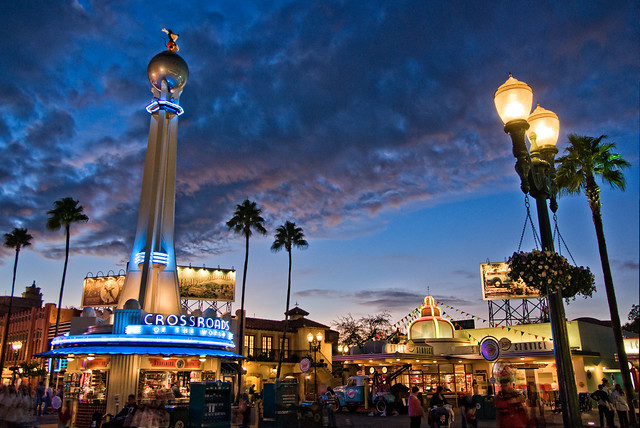
If you're like me (and I know I am), you like shots of WDW that are devoid of guests. Makes you kind of feel like you have the place to yourself when you look at such a photo -- and how often does that happen in reality? It can also take a phenomenal amount of patience to get a photo without guests -- or require lots of cloning and healing (or both). But Photoshop Extended can automate removing guests for you ...
Now, this won't work for everything. This will work best with a tripod. As I usually shoot for HDR, I've almost always got the camera on a tripod anyway. To use this tip, just take multiple sets of bracketed exposures -- and many as you stand (as long as the light doesn't change drastically). As long as the people in the frame keep moving, this will work -- although in places where there tends to be a constant stream of people, it may not ...
Once you get home, here's the procedure (in CS3 Extended -- it might differ slightly for newer versions) ... In Photoshop, choose File->Scripts->Load Files into Stack ... Then, choose your exposures in Photoshop. If you shoot sets for HDR, open each matching exposure. In other words, open up your "-2" exposures together, and so on. Also, choose the "Attempt to Automatically Align Source Images" option and the "Create Smart Object after Loading Layers" checkboxes. Then click OK.
Photoshop will chug along for a while -- how long it takes depends on your computer and how many photos you shot. When it finishes, you'll get a new untitled document with a Smart Object layer. Select (but don't open) the Smart Object layer in the Layers palette. Go to the Layer menu (not the palette) and choose Smart Objects -> Image Stack Mode -> Median. Again, Photoshop will go off to sulk and think for a bit.
What Photoshop is doing is comparing all the layers and removing anything that isn't in all (or maybe more than half -- not sure) of the layers, which of course are your original photos. When it is done, you should see the people who moved through your frame have automagically vanished! Of course, in my experience, there will be at least one person who never moved, at least not enough -- or there will be at least one spot that always had someone in it. Still, this trick should help keep cloning to a minimum.
As a free bonus, this trick also helps remove another thing that is randomly different from one frame to the next -- noise. So in some cases, even if there are no guests in a shot, you might want to try this to see if you like the free noise reduction it performs.
As an avid HDR shooter, I had a tendency in the past to shoot a ridiculous number of bracketed sets of images, just for the sake of overkill or maybe because I'm nuts. Regardless, now that I've discovered this trick I'll be going back through some of my old photos to see if I've got some on which this will work. And I guess I'll be going back to shooting multiple bracketed sets again -- my wife will be thrilled at the extra time that takes!
Scott
This only works in the "Extended" versions of Photoshop from CS3 forward. The standard version may be able to get you part of the way there, but I cannot say.
If you're like me (and I know I am), you like shots of WDW that are devoid of guests. Makes you kind of feel like you have the place to yourself when you look at such a photo -- and how often does that happen in reality? It can also take a phenomenal amount of patience to get a photo without guests -- or require lots of cloning and healing (or both). But Photoshop Extended can automate removing guests for you ...
Now, this won't work for everything. This will work best with a tripod. As I usually shoot for HDR, I've almost always got the camera on a tripod anyway. To use this tip, just take multiple sets of bracketed exposures -- and many as you stand (as long as the light doesn't change drastically). As long as the people in the frame keep moving, this will work -- although in places where there tends to be a constant stream of people, it may not ...
Once you get home, here's the procedure (in CS3 Extended -- it might differ slightly for newer versions) ... In Photoshop, choose File->Scripts->Load Files into Stack ... Then, choose your exposures in Photoshop. If you shoot sets for HDR, open each matching exposure. In other words, open up your "-2" exposures together, and so on. Also, choose the "Attempt to Automatically Align Source Images" option and the "Create Smart Object after Loading Layers" checkboxes. Then click OK.
Photoshop will chug along for a while -- how long it takes depends on your computer and how many photos you shot. When it finishes, you'll get a new untitled document with a Smart Object layer. Select (but don't open) the Smart Object layer in the Layers palette. Go to the Layer menu (not the palette) and choose Smart Objects -> Image Stack Mode -> Median. Again, Photoshop will go off to sulk and think for a bit.
What Photoshop is doing is comparing all the layers and removing anything that isn't in all (or maybe more than half -- not sure) of the layers, which of course are your original photos. When it is done, you should see the people who moved through your frame have automagically vanished! Of course, in my experience, there will be at least one person who never moved, at least not enough -- or there will be at least one spot that always had someone in it. Still, this trick should help keep cloning to a minimum.
As a free bonus, this trick also helps remove another thing that is randomly different from one frame to the next -- noise. So in some cases, even if there are no guests in a shot, you might want to try this to see if you like the free noise reduction it performs.
As an avid HDR shooter, I had a tendency in the past to shoot a ridiculous number of bracketed sets of images, just for the sake of overkill or maybe because I'm nuts. Regardless, now that I've discovered this trick I'll be going back through some of my old photos to see if I've got some on which this will work. And I guess I'll be going back to shooting multiple bracketed sets again -- my wife will be thrilled at the extra time that takes!
Scott